
Upload your room and furniture photos to create a visual placement preview.
AI Furniture Placement Tool Online
Upload a room photo and furniture product photos to preview furniture in your space. Choose Creative Mode to arrange 1–6 furniture items with AI, or use Precise Mode to drag one item to a specific spot.
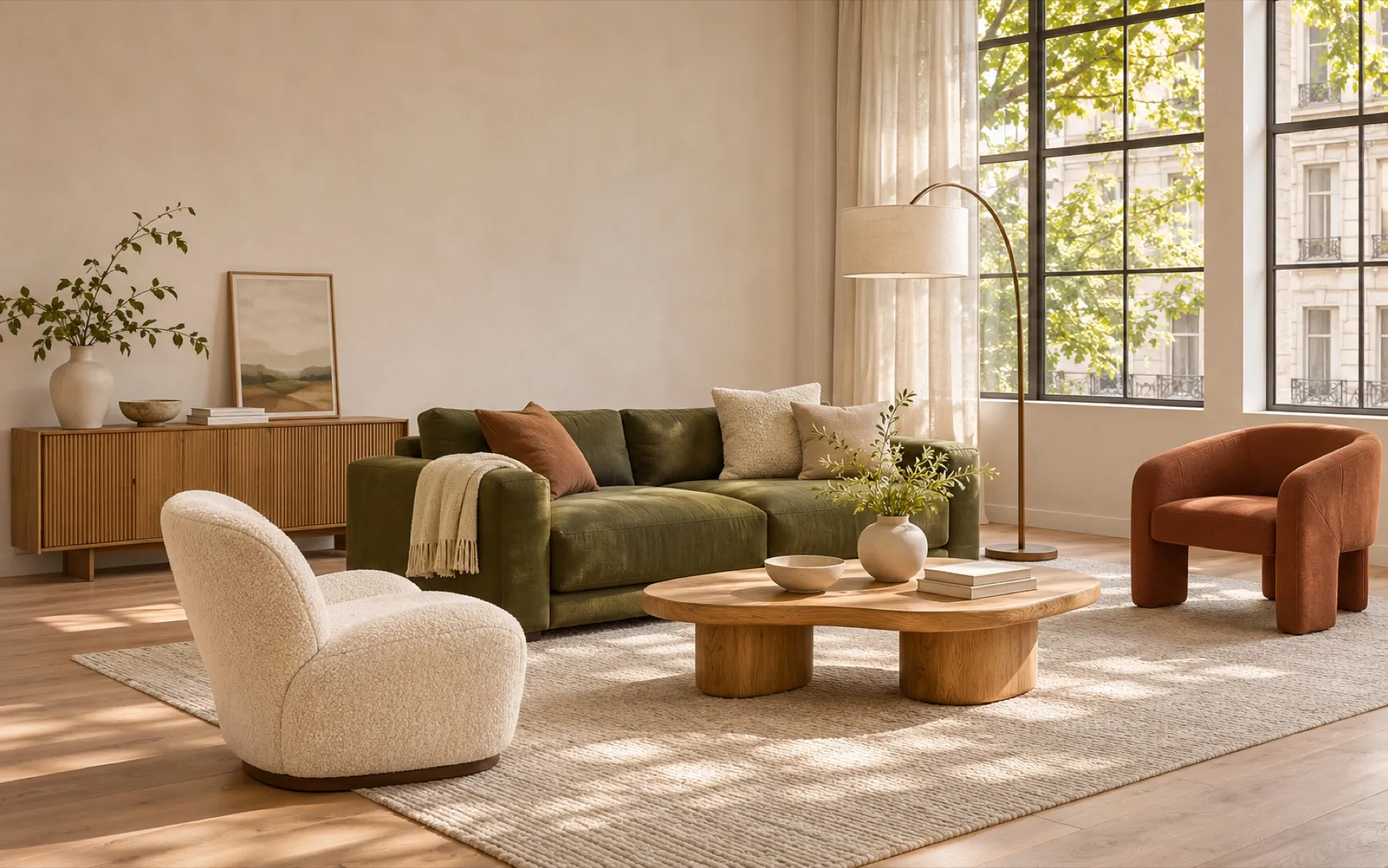
Place Furniture in Your Room Photo with AI
Preview furniture in your own room using product photos. Let AI arrange several pieces at once, or position one item yourself with drag and drop.
AI Furniture Placement for Empty and Furnished Rooms
Use Creative Mode to furnish an empty room or update a room that already contains furniture. For more control over one item's position, switch to Precise Mode.
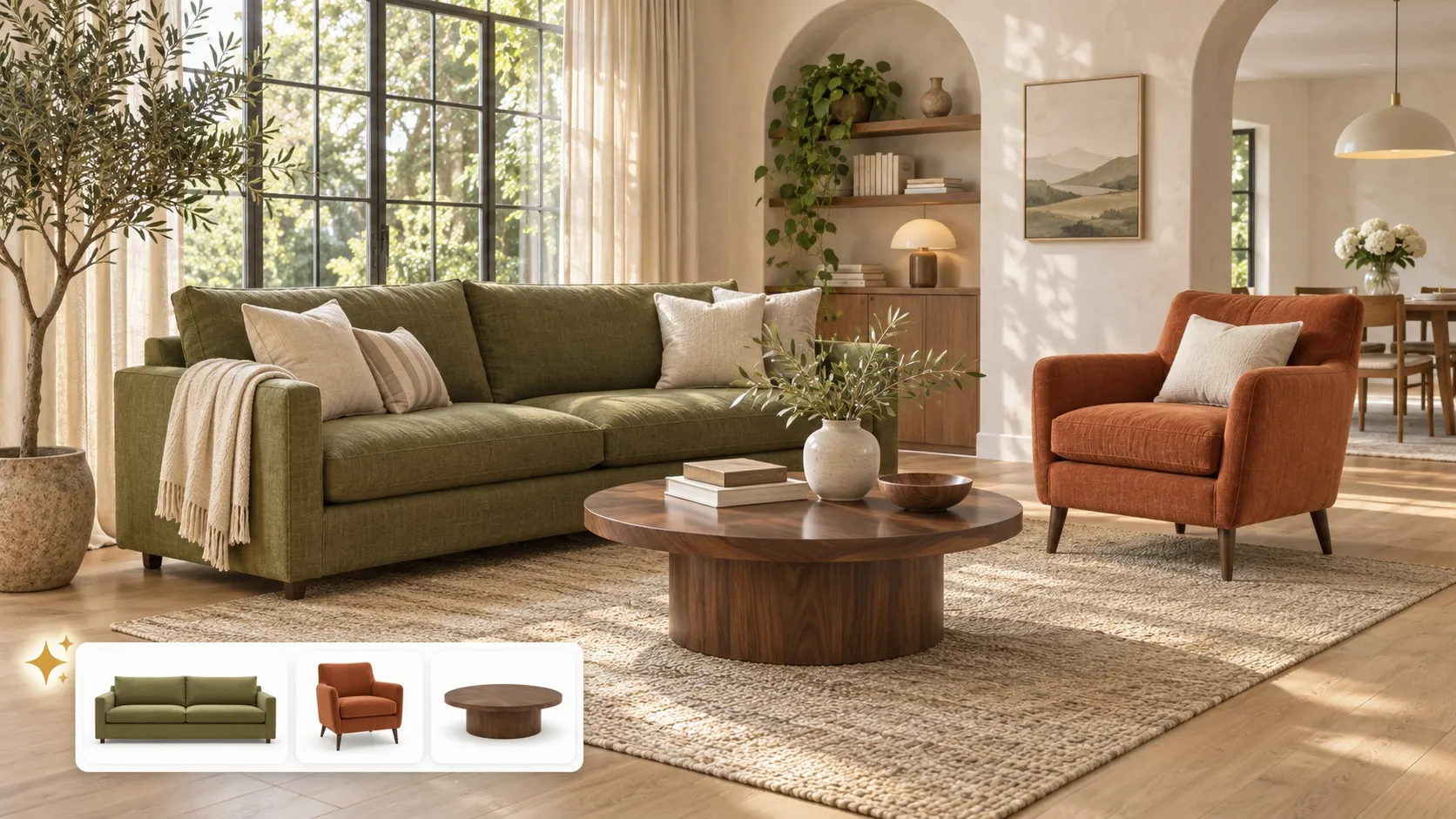
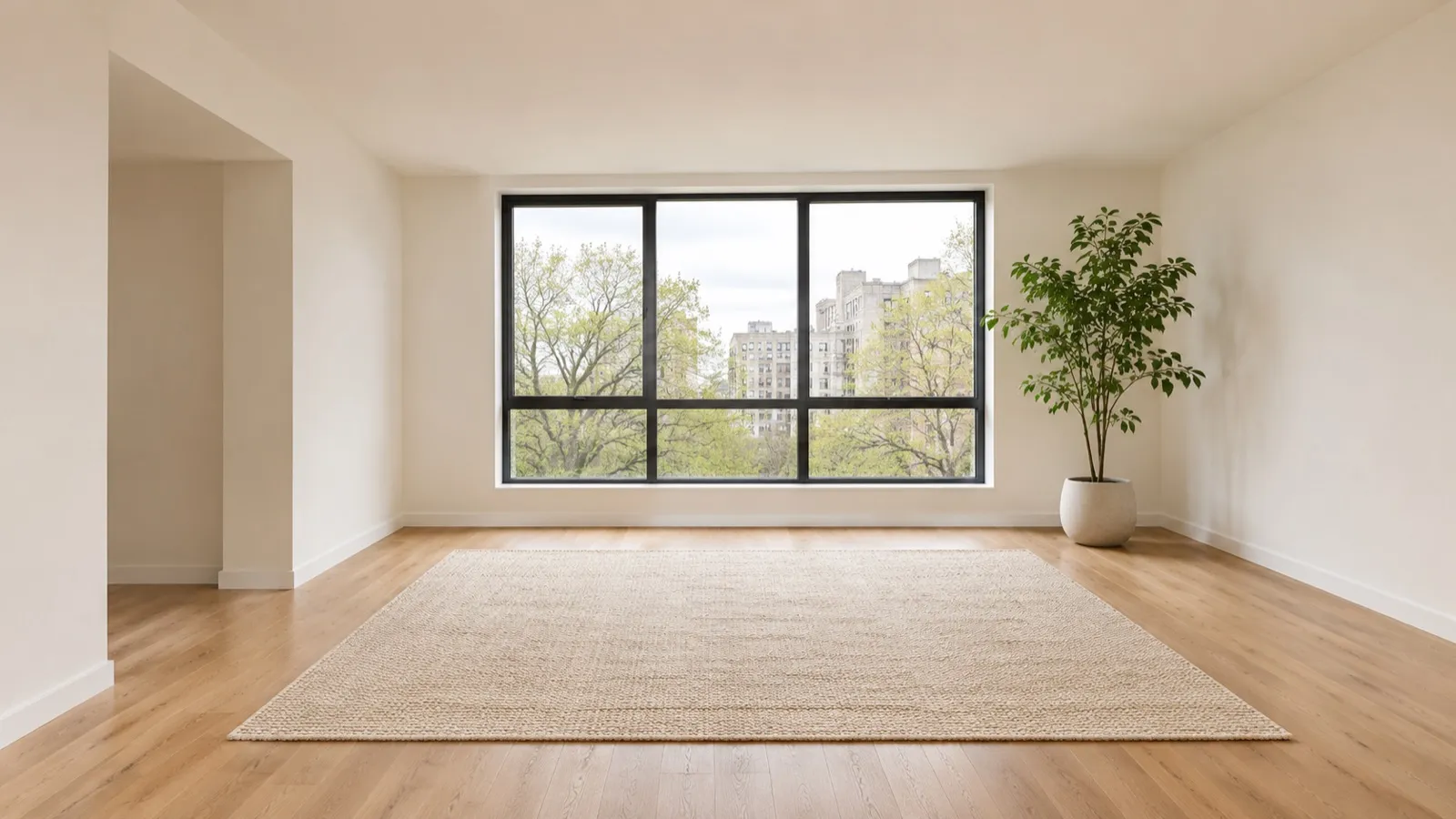
Furnish an Empty Room from Scratch
Upload an empty room photo and furniture product photos. AI creates a furnished scene using the items you provide.
Replace Overlapping Furniture and Add New Pieces
For a room that already has furniture, AI detects overlapping furniture types, such as sofas, beds, and coffee tables, and replaces them. It can also add furniture in areas that do not overlap.
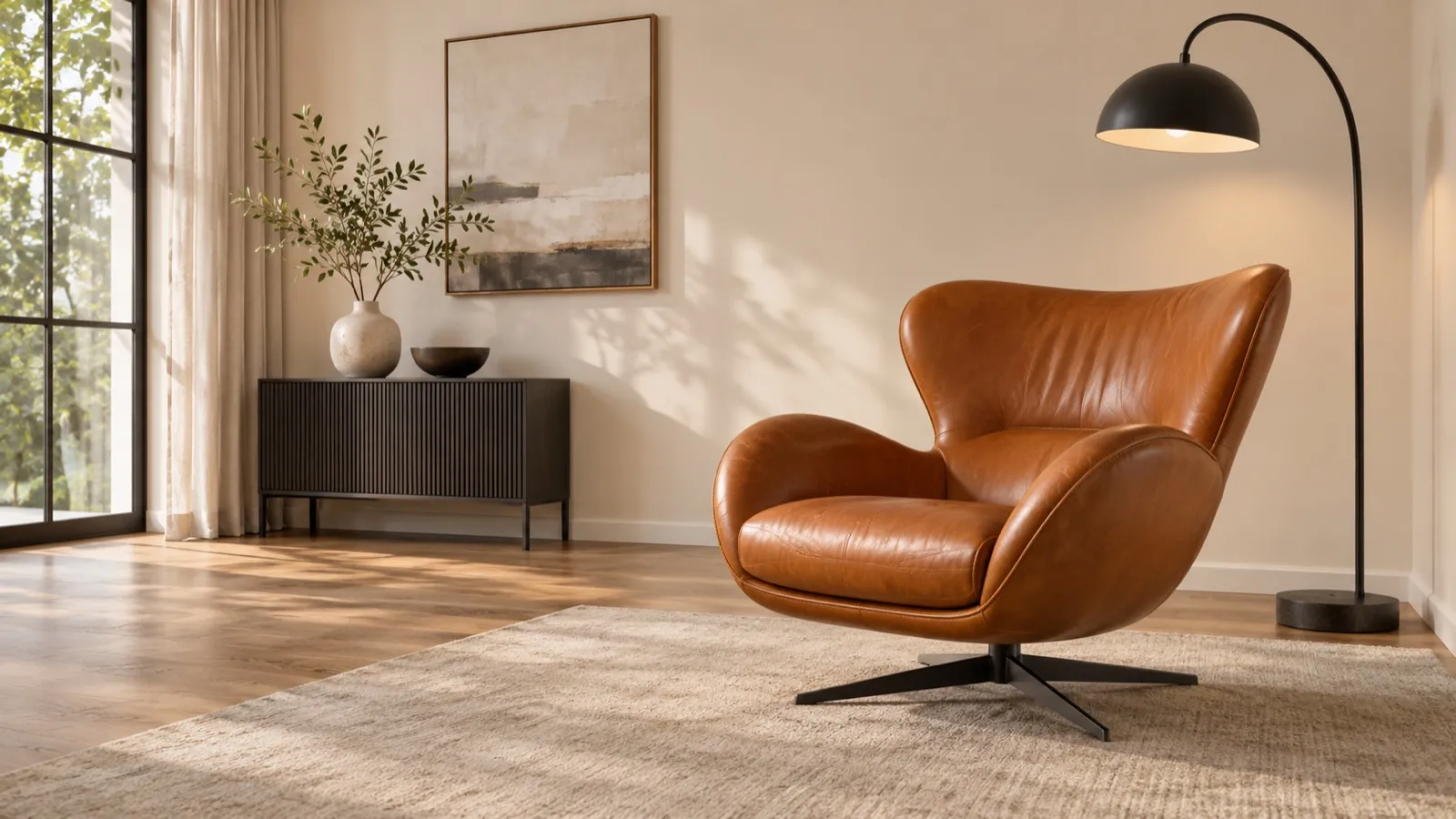
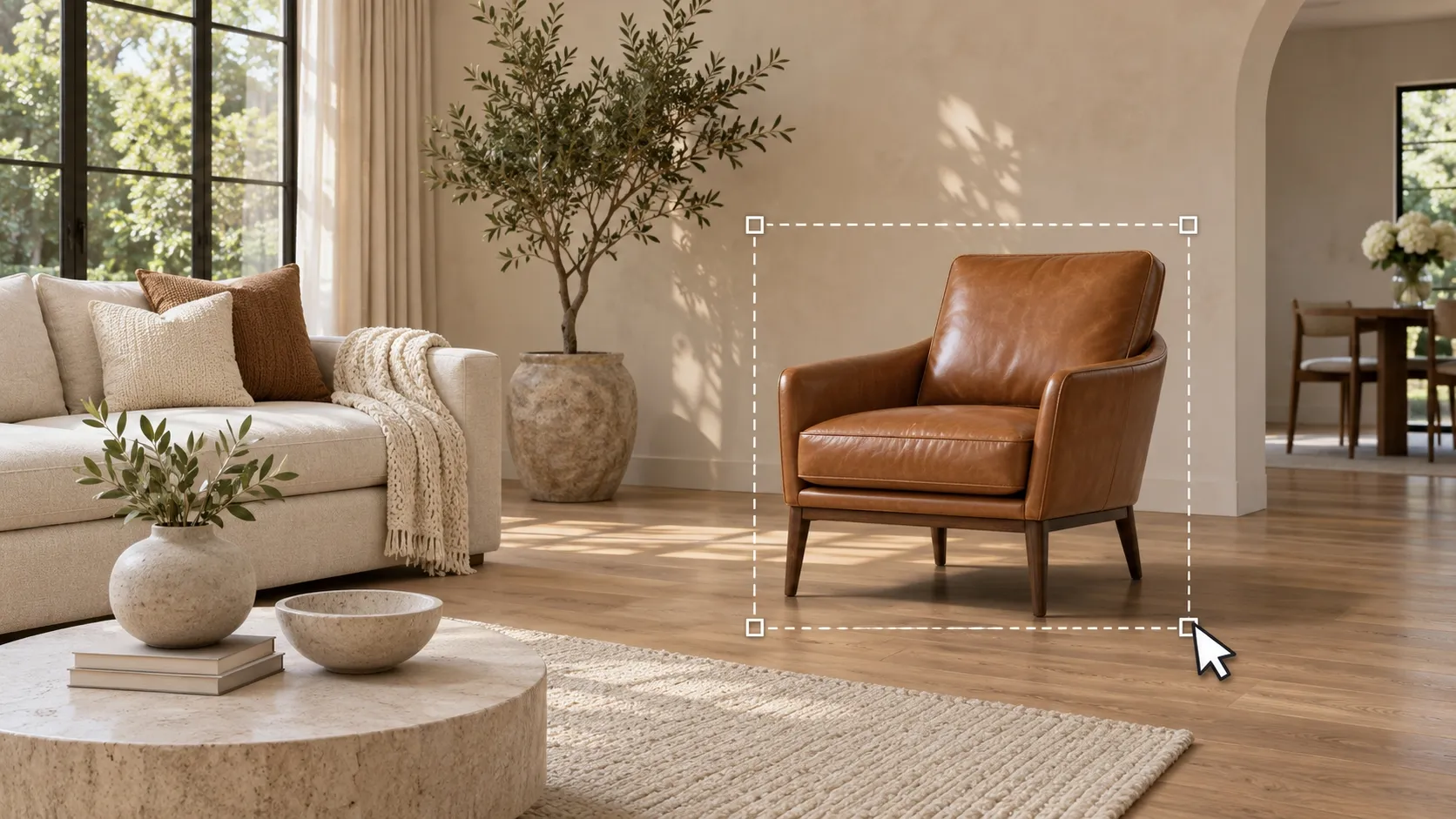
Place One Furniture Item with Drag and Drop
Upload a room photo and one furniture photo, then drag the item to your preferred location to preview its placement.
AI Furniture Placement Features
Explore AI furniture placement from product photos, with options for automatic arrangements and precise item positioning.
Upload 1–6 furniture product photos in Creative Mode to see the items placed in your room photo.
Start with an empty room photo and let AI create a furnished scene using your uploaded furniture photos.
When existing furniture overlaps with the pieces you want to add, AI detects the furniture type and replaces it.
AI can add furniture in available areas while avoiding overlap with existing pieces.
Use Precise Mode to drag one furniture item to a specific spot in your room photo.
See a visual preview of your furniture placement before moving or arranging physical items.
How to Use the AI Furniture Placement Tool
Upload your room and furniture photos, choose a placement mode, and create a preview.
Upload Your Room and Furniture Photos
Add one room photo. In Creative Mode, upload 1–6 furniture product photos. In Precise Mode, upload one furniture photo.
Choose Creative Mode or Precise Mode
Use Creative Mode for AI furniture placement across the room. Choose Precise Mode when you want to drag one furniture item to a particular position.
Generate Your Furniture Placement Preview
Creative Mode arranges the furniture automatically and takes about 15 seconds. In Precise Mode, drag the furniture to your preferred spot to preview the result.
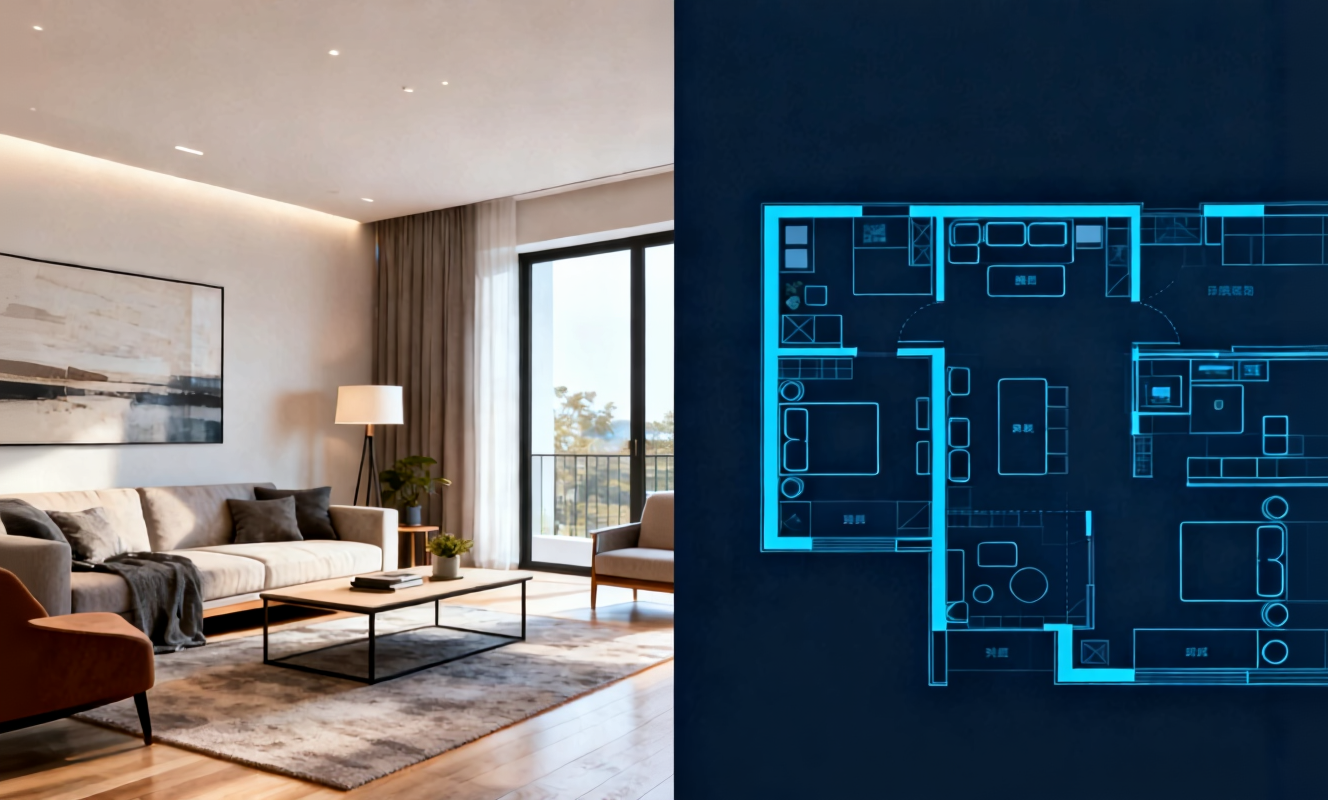
Transform any room instantly with our AI room design tool. Upload a photo of your bedroom, living room, or kitchen and watch the AI generate stunning redesigns in Modern, Scandinavian, Japandi, and more interior styles.

Create detailed floor plans in minutes with our floor plan AI generator. Design 2D layouts and 3D room visualizations for apartments, houses, and commercial spaces without architectural experience.

Home Design AI is an intuitive tool that helps you instantly generate interior, exterior, and garden design ideas based on your preferences. With advanced AI, it transforms simple inputs into realistic layouts and inspiring visual concepts, making home design faster and more accessible for everyone.
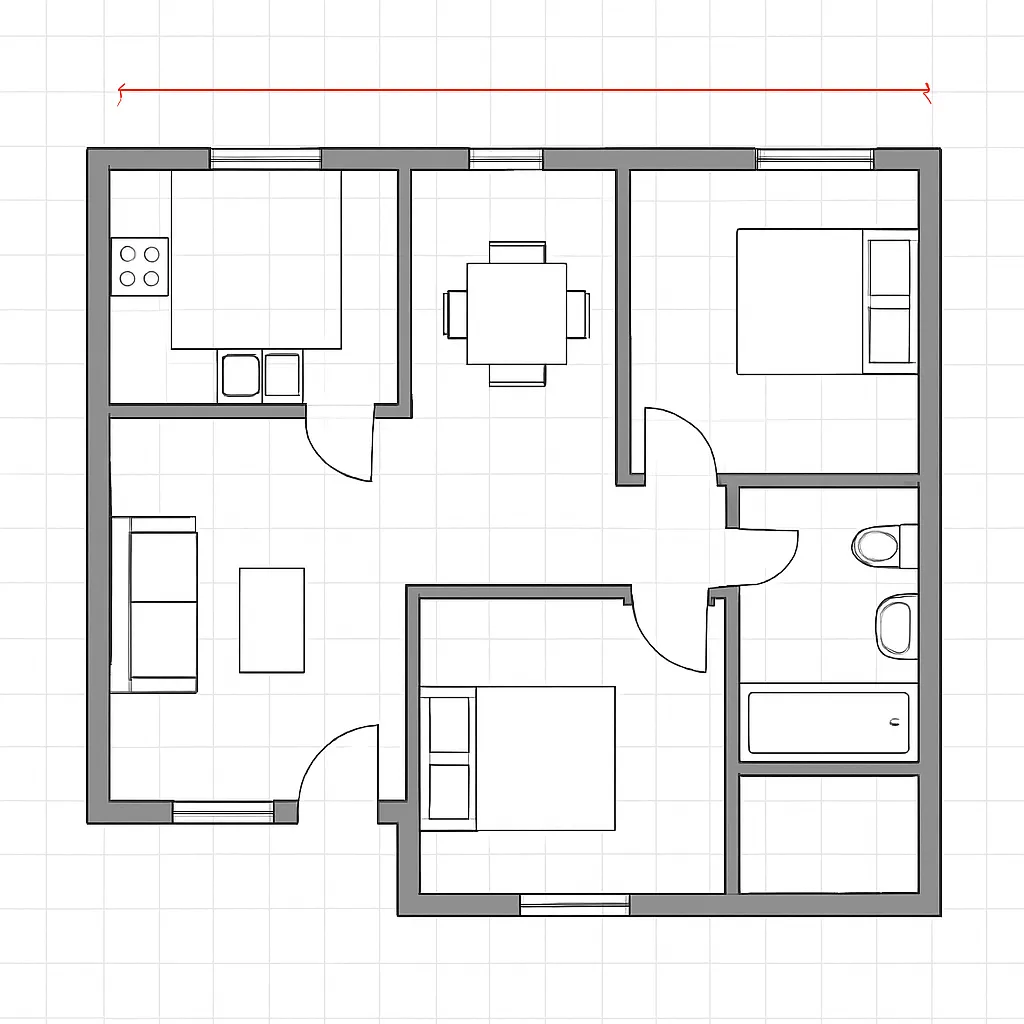
Arrange furniture and plan room layouts effortlessly with our AI floor planner. Visualize sofa placement, dining arrangements, and storage solutions in your actual space before making any purchases.
AI Furniture Placement FAQs
Learn how to place furniture in your own room photo with AI.
Try AI Furniture Placement Online
Upload your room photo and furniture product photos. Create an automatic arrangement with Creative Mode or position one item yourself with Precise Mode.